
Download XnResize – Free Windows Image Resizing Tool, Secure & Easy
Overview – What Is XnResize?
XnResize is a lightweight, free image‑resizing utility developed by XnSoft for Windows 10 and later. Positioned in the Graphic & Design category, the program focuses on a single, well‑defined task: bulk‑resizing pictures without compromising quality. First published on Softonic on May 28 2020, XnResize has remained untouched by major redesigns, which means its interface stays simple and intuitive.
The current stable build (version 1.0) runs in English and requires virtually no system resources, making it an ideal companion for photographers, web designers, and anyone who regularly works with large batches of photos. Because it is a free download, XnResize appeals to users who need a reliable solution without the licensing fees that accompany many commercial photo‑editing suites. The app is also secure – it is signed by XnSoft and distributed through reputable portals, reducing the risk of bundled malware.
In short, XnResize offers a no‑frills, secure, and efficient way to resize images on Windows, and it does so without demanding a steep learning curve or a powerful GPU.
Key Features and Built‑In Advantages
- Batch processing – resize dozens or hundreds of images in a single operation.
- Multiple scaling algorithms – choose from nearest‑neighbor, bilinear, bicubic, and Lanczos for optimal quality.
- Custom dimension input – specify exact pixel width/height or percentage‑based scaling.
- Preserve aspect ratio – automatic locking to avoid distorted pictures.
- Format flexibility – supports JPEG, PNG, BMP, GIF, and TIFF without extra conversion steps.
- Output folder management – keep originals untouched while saving resized copies to a user‑defined directory.
- Drag‑and‑drop interface – simply drop a folder onto the window to start processing.
- Command‑line support – integrate XnResize into scripts for automated workflows.
Pros
- Free and fully functional: No hidden fees or trial periods.
- Lightweight footprint: Runs smoothly on low‑end PCs.
- Fast batch processing: Handles large collections in seconds.
- Multiple resampling options: Gives control over image sharpness and file size.
- Secure download source: Signed installer from XnSoft.
Cons
- Windows‑only: No native macOS, Android, or iOS versions.
- Limited editing tools: Focuses solely on resizing; no cropping or filters.
- Basic UI design: Looks dated compared with modern graphic suites.
Installation, Usage Guide & Compatibility
Step‑by‑step installation
- Visit the official XnSoft download page or a trusted portal such as Softonic.
- Click the “Download XnResize” button – the installer is a small
.exefile (≈ 3 MB). - After the file finishes downloading, run it. Windows will prompt you to confirm the installation; click “Yes” to proceed.
- Follow the on‑screen wizard: accept the license agreement, choose an installation folder (default is
C:\Program Files\XnResize), and click “Install”. - When the process completes, tick “Launch XnResize” and finish.
First‑time launch & basic workflow
- Upon opening, you’ll see a clean window with three main panels: “Source Folder”, “Destination Folder”, and “Resize Settings”.
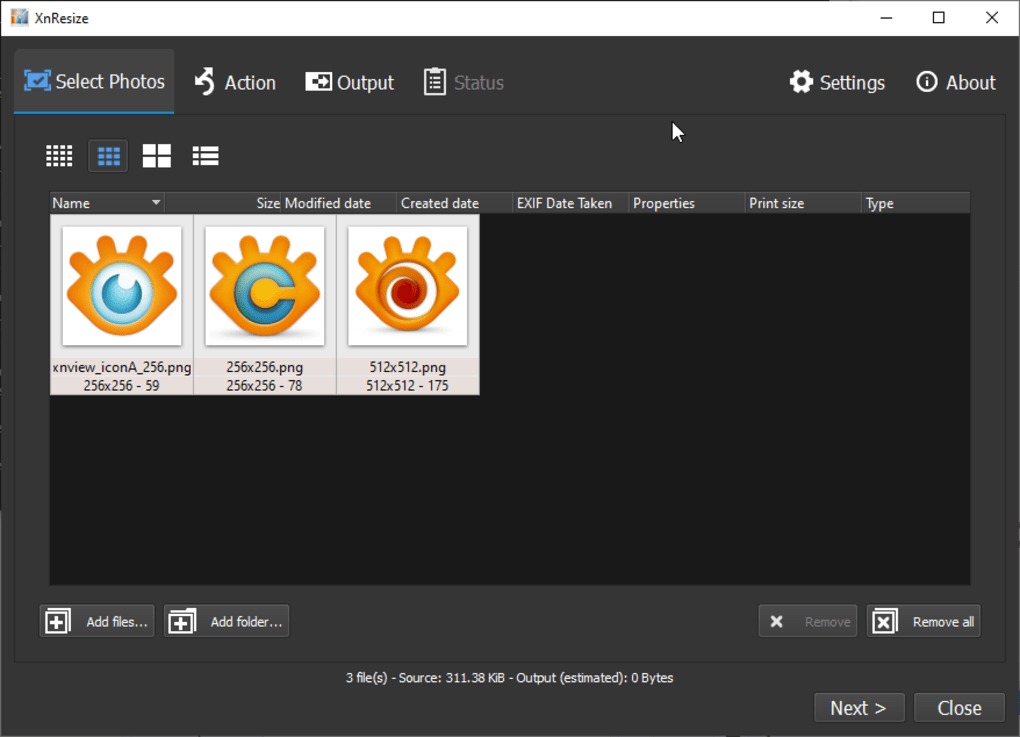
- Click “Browse” under Source Folder and select the directory containing the images you wish to resize.
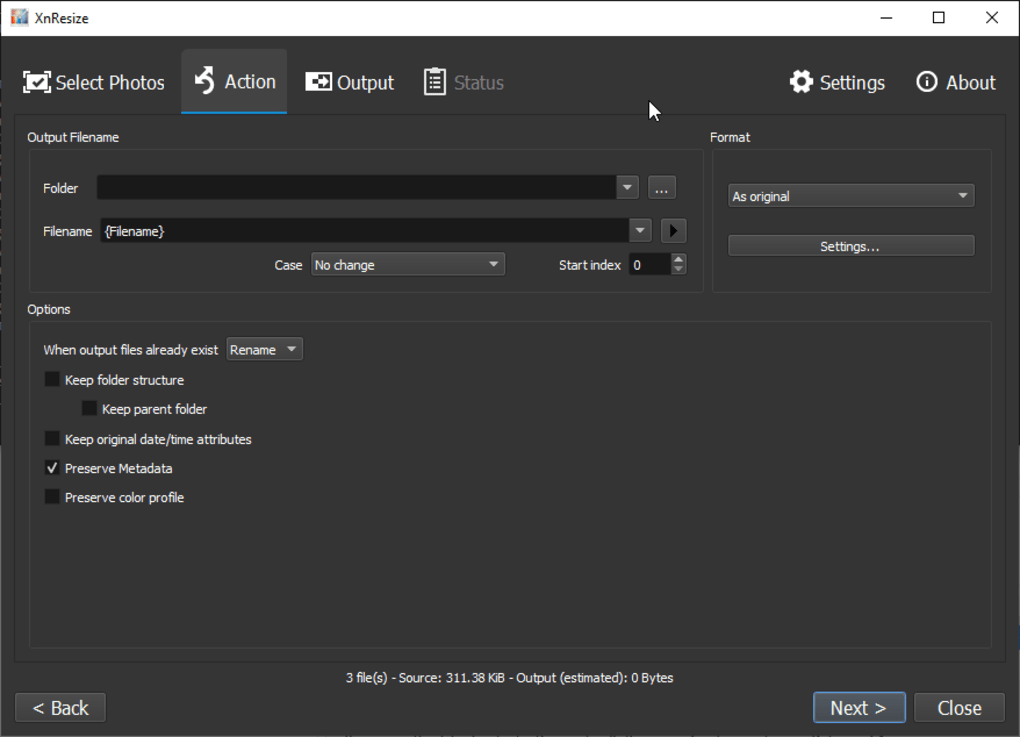
- Choose a Destination Folder – this is where resized copies will be saved, preserving the originals.
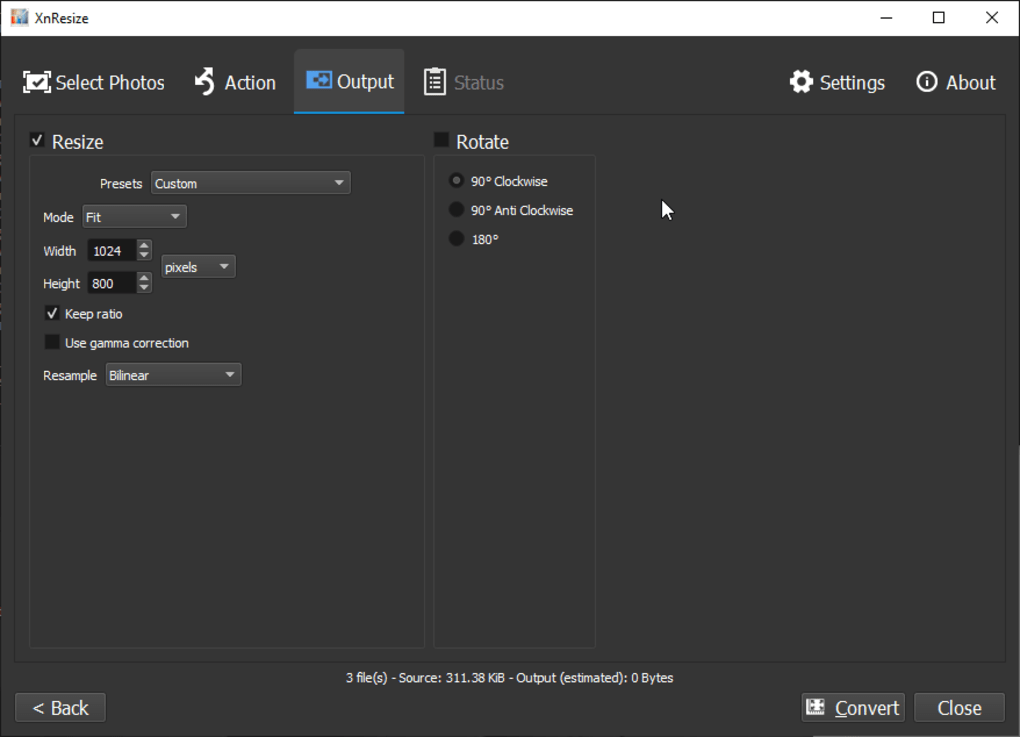
- In the Resize Settings area, define the new size. You can enter exact pixel dimensions (e.g., 800 × 600) or a percentage (e.g., 50 %). Ensure “Maintain aspect ratio” is checked to avoid stretching.
- Select a scaling algorithm from the dropdown list. For photographic images, Lanczos yields the best quality; for simple graphics, bilinear is faster.
- Click “Start” to begin the batch process. A progress bar shows the status, and a log window reports any skipped files.
Advanced usage
- Command‑line mode: Open
cmd.exeand runxnresize.exe -src "C:\Photos" -dst "C:\Resized" -w 1024 -h 768 -algo lanczosto automate resizing within scripts. - Presets: Save frequently used dimensions as presets for one‑click access.
- File type filtering: Use the “Include” field to process only specific extensions, such as
*.jpg;*.png.
Compatibility
XnResize officially supports Windows 10, Windows 11, and later builds. The program runs in both 32‑bit and 64‑bit environments, though a 64‑bit OS is recommended for handling very large batches. Because the software relies on native Windows APIs, it cannot be installed on macOS, Linux, Android, or iOS. Users needing cross‑platform resizing may consider companion tools from XnSoft, such as XnConvert, which offers broader OS coverage.
FAQ – Frequently Asked Questions
Is XnResize really free, or are there hidden costs?
XnResize is completely free. The download does not require registration, and there are no hidden in‑app purchases or subscription fees. All features are available out of the box.
Can I resize images without losing quality?
Quality loss depends on the chosen scaling algorithm and the target dimensions. Using high‑quality algorithms such as Lanczos or bicubic preserves most details, especially when downsizing moderately. However, extreme upscaling will inevitably introduce some softness.
Does XnResize support RAW files?
The free version does not include native RAW support. If you need to process RAW images, convert them to JPEG or PNG first, or consider XnSoft’s paid suite which adds RAW handling.
Can I automate XnResize with a script?
Yes. XnResize provides a command‑line interface that accepts parameters for source folder, destination, dimensions, and algorithm. This makes it easy to embed in batch files or PowerShell scripts for automated workflows.
Is the software safe from viruses and adware?
The installer is digitally signed by XnSoft and distributed through reputable download portals. No adware, toolbars, or unwanted extras are bundled, making it a safe choice for personal and professional environments.
Conclusion – Should You Download XnResize?
If you need a fast, secure, and completely free solution for bulk image resizing on Windows, XnResize checks all the essential boxes. Its straightforward UI, multiple resampling algorithms, and command‑line support give both beginners and power users the flexibility they need. While it lacks advanced editing features and cross‑platform availability, the program’s lightweight nature and zero‑cost licensing make it an excellent addition to any photographer’s toolkit. Download XnResize today, give it a test run, and experience hassle‑free image resizing without paying a cent.